Start by identifying where the failure occurs. If nothing imports, check the format of the details. If an entry appears but won’t connect, check its parameters and permissions. If it connects but you can’t access a destination, check DNS, rules, and the destination. This avoids changing Rule when a subscription hasn’t loaded, or changing unrelated system settings when an authentication field is wrong.
No Entries After Subscription Import, or Incomplete QR Scan
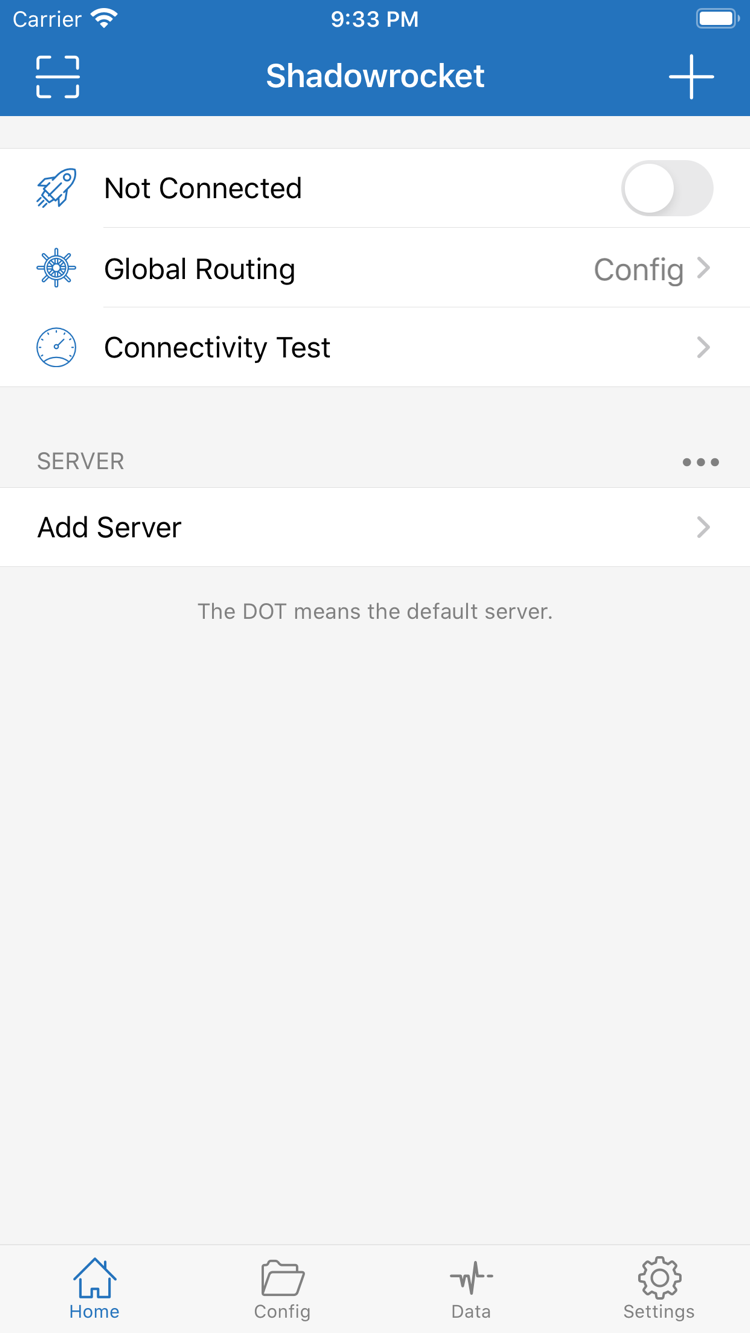
Check that the original details are complete, especially the subscription URL’s query parameters, the share link prefix, and the QR code edges. Check whether the subscription can be fetched on your current network and whether it returns a login page or regular web page instead of configuration data. Don’t enter a private subscription URL on an unfamiliar online conversion site. Once you’ve confirmed the format, import it again and check for entries on Home. If the issue persists, ask the provider to confirm that the details are valid.
Connection Switch Won’t Stay On, or Authentication Fails
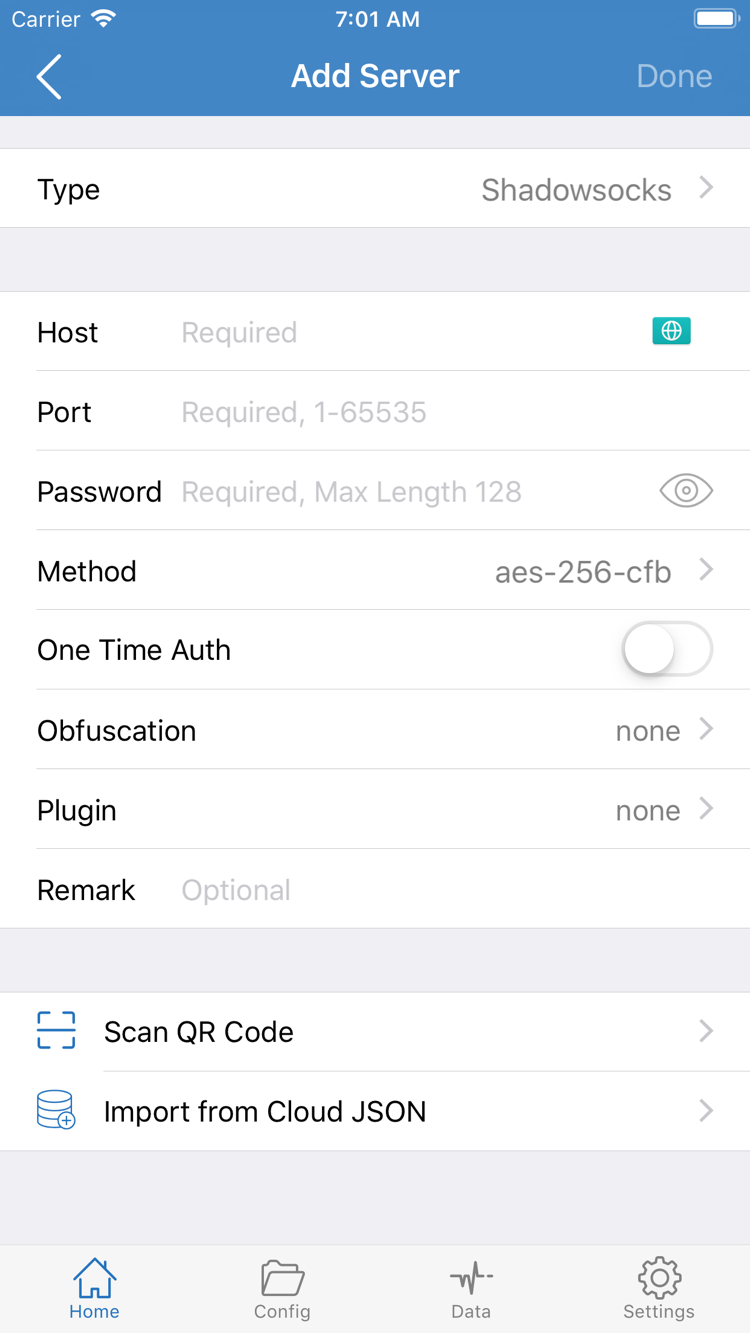
First confirm that the system has granted VPN configuration permission. Then check the selected entry’s Type, Host, Port, and authentication fields. For entries that require TLS or specific transport settings, also check the server name and related options; don’t check Password alone. If the result differs on another trusted local network, note the difference, but don’t assume that a particular protocol will necessarily fix the issue. For details on protocol fields, see the protocol reference.
Test Responds, but Web Pages Won’t Open
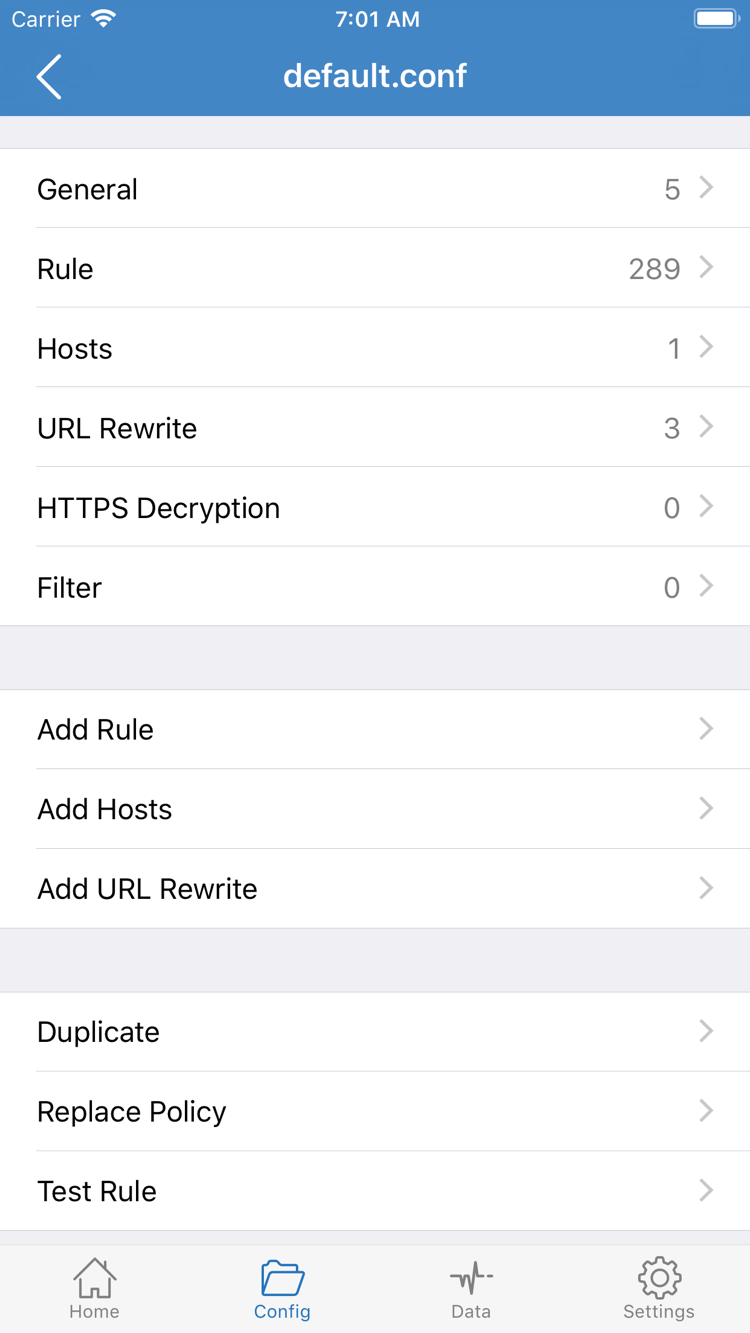
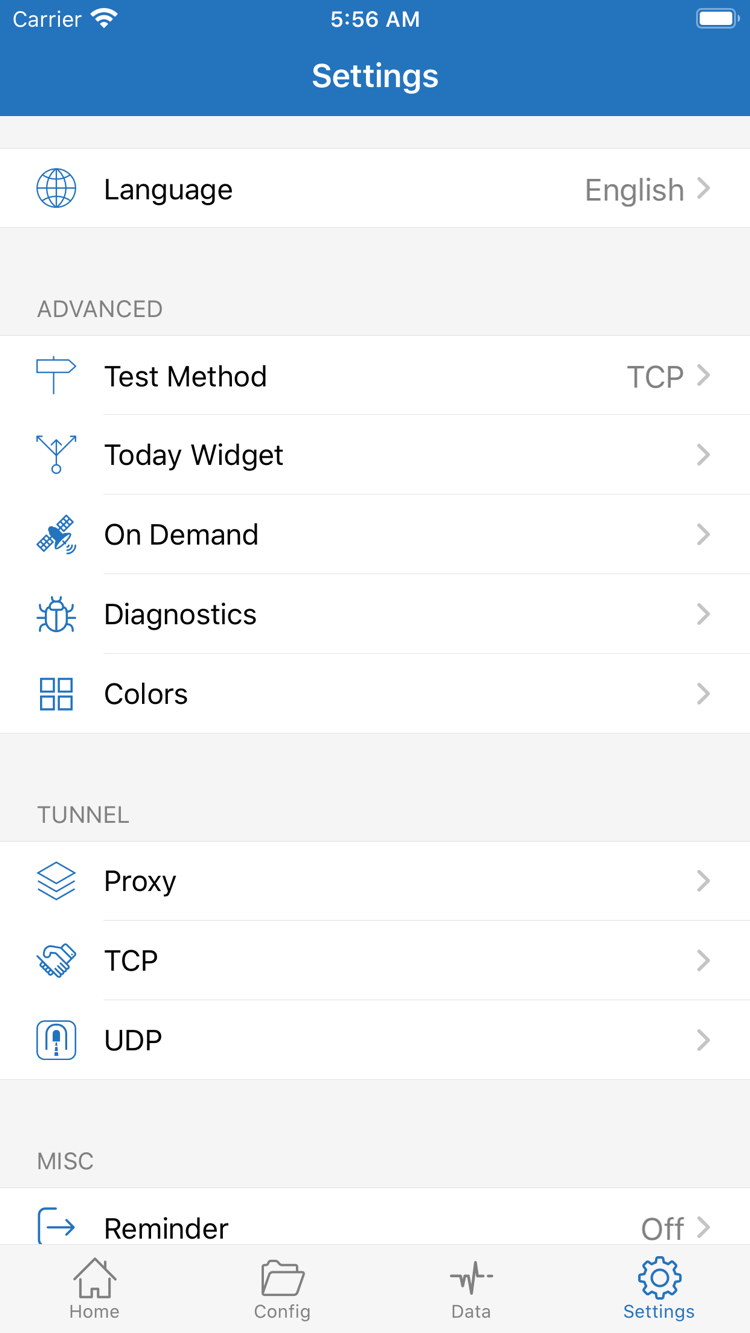
Open Settings and check Test Method to understand how Connectivity Test works, then distinguish that test from an actual web request. Next, check the DNS settings and Rule in the current configuration. If domain-based access fails while another test responds, DNS resolution is one area to check, but that alone doesn’t identify the cause. Don’t replace an HTTPS domain with an IP address arbitrarily; certificates and site selection also depend on the domain.
Connection Keeps Turning On Automatically, or Results Are Inconsistent
Check On Demand in Settings. It triggers connections based on configured conditions; it doesn’t correct server parameters. While troubleshooting, you can temporarily turn off On Demand to see what happens when you connect manually. After confirming that a manual connection and the destination request both work, restore the conditions you need one at a time and check that behavior remains as expected when switching local networks.
Record Diagnostics Before Making Another Change
Diagnostics in Settings provides available diagnostic information. Record what happened, the current Global Routing mode, the test method, and any error messages. These details are more useful for narrowing down the issue than simply saying it doesn’t work. Before sharing records, hide private server addresses, subscription URLs, authentication fields, and other identifying information. You don’t need to publish your full configuration.
Change one setting at a time and repeat the same verification steps from Step 04. Keep the original configuration before making changes, and try another approach only if you can restore it. For subscription status, server certificates, or authentication details, ask the provider of your existing information to confirm them. For purchases, device compatibility, or restoring a purchase, see how to restore a purchase. For other scenarios, see the FAQs. There’s no need to change every setting at once because of a single failure.
Record completed: the entry used, Global Routing mode, destination tested, and stage where the failure occurred. Start with these four details when troubleshooting further.