Official Guide · App Store Purchase Information

Download Shadowrocket
Verify the App Store Listing

Shadowrocket is a paid app, sold exclusively on the App Store as a one-time purchase. Verify the storefront and product details before buying. After installation, configure the connection using your own subscription or server details.

  • App ID932747118
  • US reference price$2.99 one-time purchase
  • Universal purchase for iPhone and iPad

Developer: Shadow Launch Technology Limited
Check the App Store listing for actual pricing, system requirements, and purchase eligibility.

PRODUCTVerify the same product pageThe link ends with id932747118

PURCHASEKeep using the original purchase accountFor purchased apps and restoring on a new device

CONFIGURATIONThe app and connection service are separateApp purchase ≠ connection plan

Storefront and Account Region

Check your Apple ID country or region first

Your Apple ID country or region determines which App Store storefront you see. Shadowrocket isn't available in the China mainland storefront, so it may not appear when you search for it there. If you can't find it, check the region of the account used for purchases rather than choosing an app with a similar name.

The button on this page links to Shadowrocket's App Store product page. The us in the link is a storefront path. Opening the link does not change your account region; purchase availability depends on your current account, storefront, and the messages shown by Apple. Seeing the product page in a browser also doesn't mean it's available to buy in the App Store on your device.

The Apple ID signed in to your device may differ from the account used for Media & Purchases. For app purchases, check the latter. Confirm which account is in use before checking its country or region to avoid mistaking another account's purchase history for your own.

Verify the App

Check the developer, official icon, and app ID

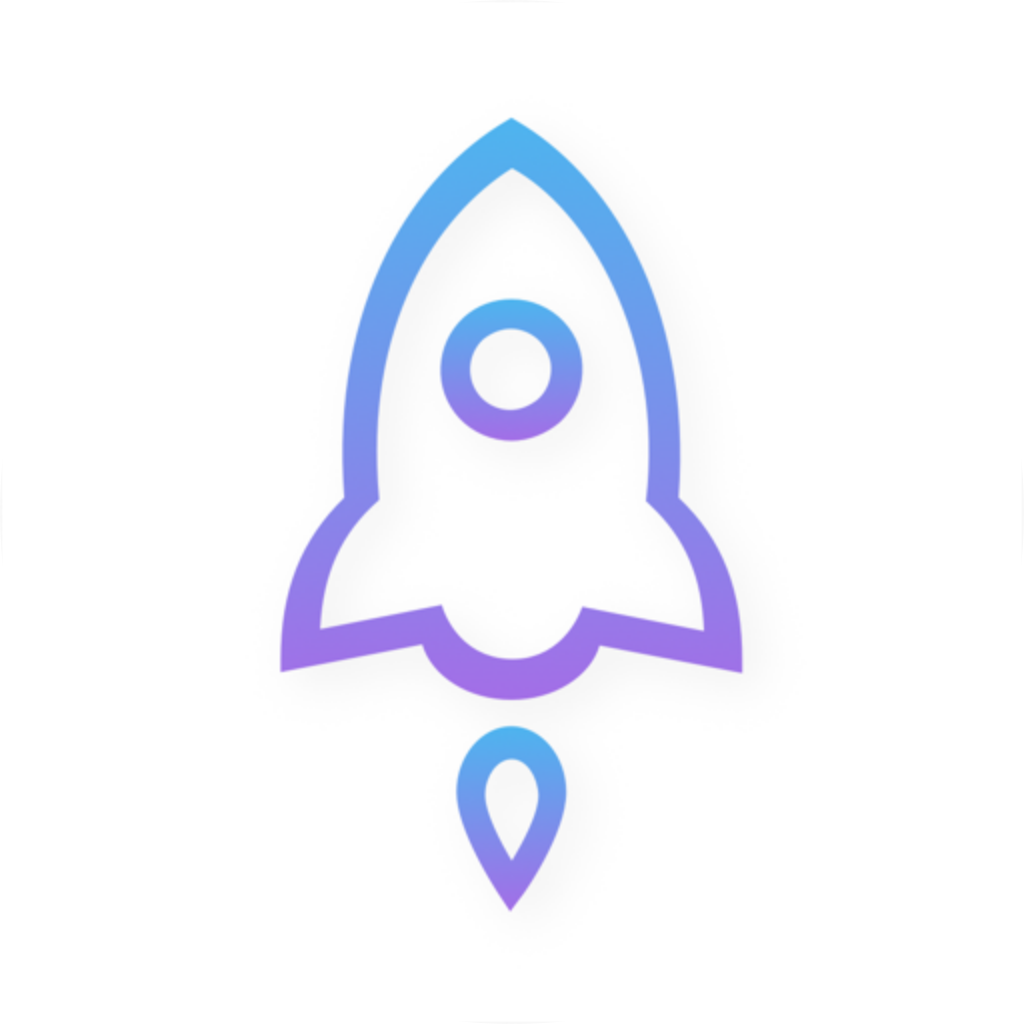
Official Shadowrocket icon: a rocket with a blue-violet outline on a white background

Shadowrocket
Official App Store icon

The name and search terms can help you find an app, but they don't confirm its identity. Verify the English product name on the App Store before buying. For apps with similar names, icons, or sponsored search results, check all three details below.

  1. Developer: Open the product page and verify the developer is Shadow Launch Technology Limited. Don't rely only on the search result title or use text in a screenshot in place of the App Store listing.
  2. Official icon: Compare it with the official icon on this page: a rocket with a blue-violet outline on a white background. A similar graphic doesn't confirm that it's the same app; also verify the developer and app ID.
  3. App ID: Check that the product page link ends with id932747118. The app ID is 932747118 and distinguishes the app from products with similar names.

All three details should identify the same product. If the name matches but the developer differs, or the app ID in the product link is different, stop and return to the App Store link on this page to verify the listing. Price and reviews are not substitutes for these identity checks.

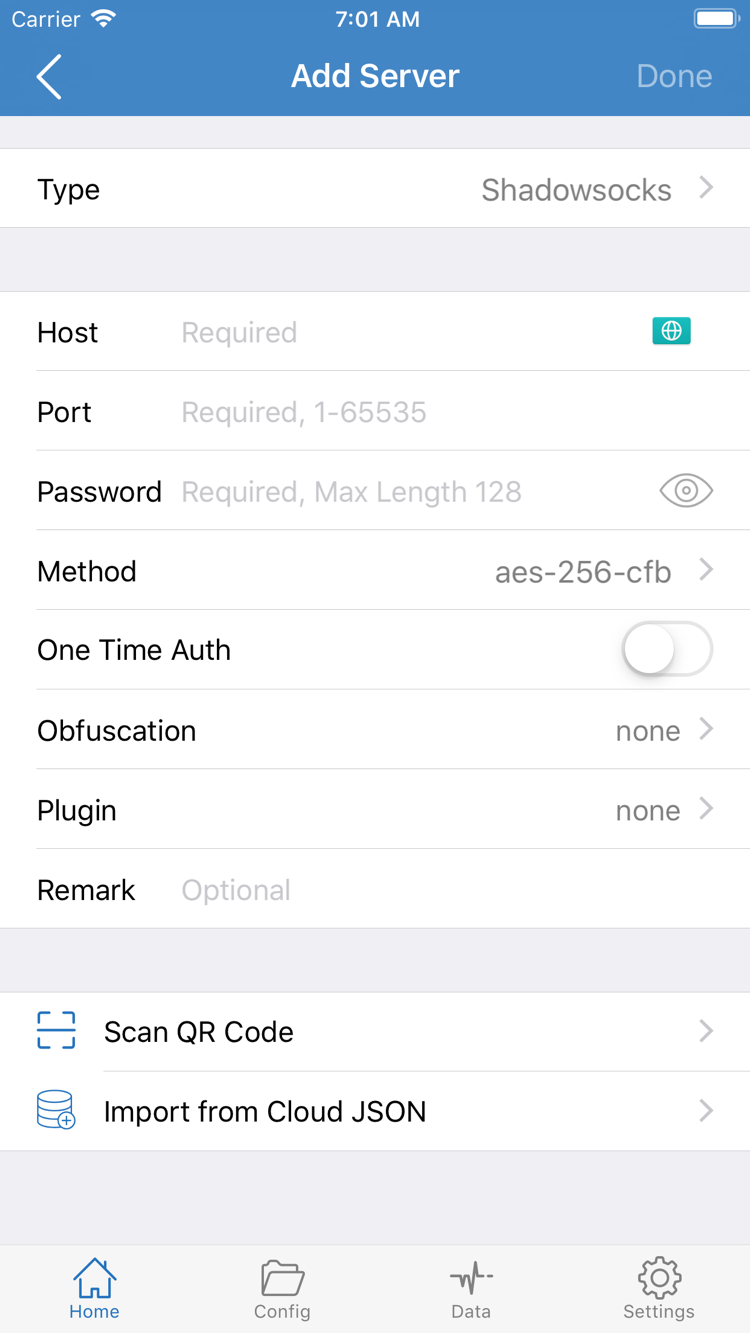
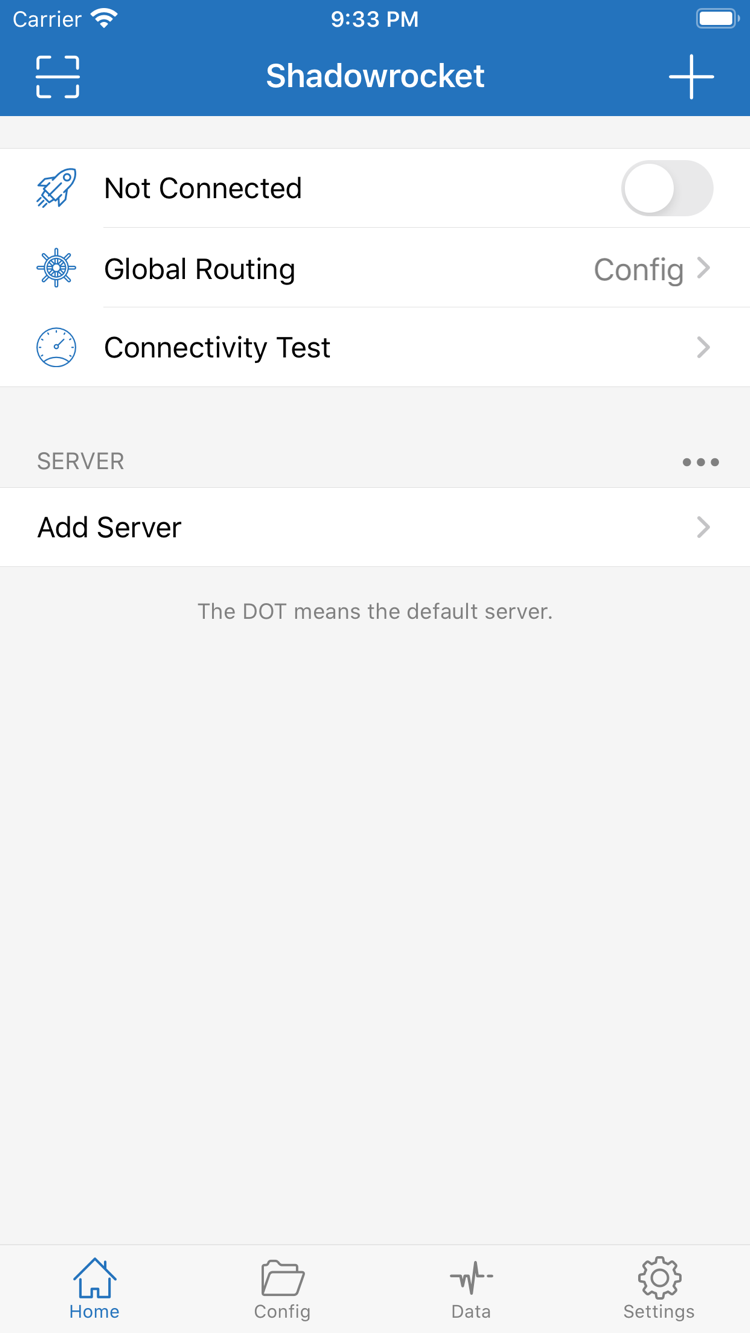
The two images here are official App Store screenshots uploaded by the developer. They show pages you may see after installation. Home shows the connection status and configuration entry points; Add Server shows the server details form. Screenshots don't show live device status or prove that a configuration can connect. The installed app shows the current interface.

Official Shadowrocket Home screenshot showing Not Connected, Global Routing, Connectivity Test, SERVER, and Add Server
Home: Check connection status, Global Routing, and the SERVER list.
Official Shadowrocket Add Server screenshot showing Type, Host, Port, Password, Method, Scan QR Code, and Import from Cloud JSON
Add Server: Enter your existing server details or use the relevant import option.

Get Shadowrocket on iPhone and Open It for the First Time

Complete your purchase before granting VPN configuration permission

On your iPhone, open the App Store using the button on this page. Verify the listing, then check its compatibility section. Check the App Store page for system requirements. If the store says your device isn't compatible, follow its guidance to check your device and system. Being able to view the product page doesn't mean the app can be installed.

The App Store handles purchase confirmation. Before confirming, check the account in use, displayed currency, and final price. Once the purchase is complete, wait for the app to appear on your device. Payment verification, download progress, and error messages are shown by the store or system. If a download is interrupted, first check whether the transaction completed, then troubleshoot your network or available storage.

When installation is complete, open Shadowrocket. Not Connected on Home means no connection has been established. Installing the app and importing a usable configuration are separate steps. Add entries to the SERVER list using your own subscription or server details.

System Prompt on First Connection

The first time you try to connect, the system may ask permission to add a VPN configuration. This device permission allows Shadowrocket to use the system network extension to establish a connection; it is not another app purchase. Confirm that you're using Shadowrocket, then follow the system prompts to grant permission and complete any required device authentication.

Allowing a VPN configuration does not create server details or import a subscription. Check your existing configuration, choose a Global Routing mode, and then connect. For step-by-step help, read the official guide and follow the sequence: import, select, connect, and verify.

If system permission hasn't been granted, resolve that prompt first. If permission is granted but webpages still won't load, check your configuration and connection status instead. Troubleshooting installation, permissions, and connectivity separately helps avoid changing unrelated settings.
iPad and Other Compatible Devices in the Same Storefront

Use the Same Purchase on iPhone and iPad

Download Again on iPad

Shadowrocket is a universal purchase for iPhone and iPad. If you bought it on iPhone, use the same Apple ID for Media & Purchases on your iPad, find the app in the App Store purchase history, and download it again. You won't need to pay again for the same purchase. Check the App Store listing for system requirements and universal purchase eligibility.

An iPad has a different amount of display space from an iPhone, so list layouts and page appearance may vary by device and app state. Look for entry points such as Home, Config, and Settings; buttons don't have to appear in exactly the same positions as in iPhone screenshots.

Purchase history and in-app configuration are separate. After installing on iPad, check that the SERVER list and Config contents are present. If your configuration isn't there, import your own subscription or server details again and check the required parameters instead of buying the app again.

Mac, Apple TV, and Apple Vision

The compatibility section of the App Store listing includes Mac, Apple TV, and Apple Vision. To use Shadowrocket on one of these devices, open the same product page in its App Store and check compatibility and purchase status. The App Store remains the place to get the app.

System requirements, universal purchase eligibility, and installation conditions may differ by device; check the App Store listing. Don't assume that a purchase on iPhone means every device meets the installation requirements, and use the actual App Store message on your target device rather than relying on this page.

The first-install and configuration steps in this official guide focus on iPhone and iPad. For other compatible devices, refer to the app's wording on that device for input methods, page layouts, and feature locations.

New Devices and Reinstallation

Restore the app first, then check your configuration

App Store purchase history is linked to the Apple ID used to make the purchase. When you switch devices or reinstall the app, first confirm that the new device uses the original account for Media & Purchases. Then open App Store → Account → Purchased, find Shadowrocket, and download it again. Purchased apps may appear under categories such as Apps; use the categories shown on your device.

You can usually download an eligible purchase again without paying when signed in to the same account. If the product page still shows a price, don't confirm another payment yet. Check the account used for the purchase, the original purchase record, and the storefront region. Using the same account for other services doesn't mean it's also the account used for Media & Purchases.

If Shadowrocket isn't in your purchased list, check the list filters and search term, then review your original purchase history. Follow the App Store's current guidance for restrictions related to account status, storefront availability, or device compatibility. Check the App Store listing for current redownload eligibility.

Check These Three Things After Restoring

  1. App: Confirm it was redownloaded from the original purchase and opens to Home.
  2. Configuration: Check the SERVER list and Config contents. If they weren't restored, import your own subscription or server details again. Purchase history is not a backup of server parameters.
  3. Connection: The new device may ask permission to add a VPN configuration again. After granting permission, check Global Routing and Connectivity Test.

If you can still access your old device before reinstalling, make sure you can retrieve the configuration details you need. Redownloading the app won't restore missing server addresses, passwords, or subscription details. Avoid including complete credentials in public screenshots or on public pages.

Check the current App Store listing and Apple's account settings to see whether Family Sharing applies. Family Sharing and restoring a purchase with the same Apple ID are different cases; don't assume another account will show the same purchase status.

Price and What the Purchase Includes

A one-time purchase for the app

Shadowrocket is a closed-source commercial app sold for a one-time fee, with no monthly app charge. The US storefront reference price is $2.99; other storefronts display local currency. Check the App Store listing and payment confirmation for the actual price. Amounts shown in different regions aren't directly comparable, and the reference price on this page isn't a guaranteed final price.

Purchase history lets you download the app again. Updates are delivered through the App Store and can be managed in your device's app update settings. To review current feature changes, read the update notes in the store. This page doesn't list fixed version numbers or release dates, which could be mistaken for ongoing purchase terms.

If the payment screen didn't complete, check the App Store message and purchase history first. If a transaction is recorded but the app hasn't appeared, troubleshoot that transaction rather than buying repeatedly just because the button still shows a price.

An app purchase is not a connection plan.

This site does not provide or sell nodes or subscriptions, or recommend connection services. The app purchase and your own connection service are managed separately.

After buying the app, you'll still need your own subscription or server details. Use your own configuration information for addresses, ports, authentication, and protocol parameters. A successful payment doesn't mean the SERVER list already contains usable entries or that any particular website will be reachable.

Check purchase status, configuration completeness, and server connectivity separately. If the app opens normally, troubleshoot the imported details, permissions, rules, and network status next. Read the FAQ, or check what the Type parameters mean in the protocol reference.

Purchase FAQs

Can't Find It, Download Issues, and Restoring on a New Device

Can't find Shadowrocket on the App Store?

First check the country or region for the Apple ID used for Media & Purchases. Shadowrocket isn't available in the China mainland storefront. The us in the product link doesn't change your account's region. Once you've confirmed the account region, open the App Store link on this page and verify the developer and app ID.

The App Store page opens, but the download won't complete. What should I do?

Read the specific App Store message first, then check your account region, payment status, available device storage, and network connection. Check the App Store listing for system requirements. If you've been charged, check your purchase history and the account in use before trying to buy again.

Do I have to pay again to download Shadowrocket on a new device?

On the App Store, sign in with the Apple ID used for the original purchase, find Shadowrocket under Account and Purchased, and download it again. You usually won't need to pay again. If a price still appears, check the account currently used for Media & Purchases and the original purchase record.

Can I install Shadowrocket on iPad after buying it?

Shadowrocket is a universal purchase for iPhone and iPad. On iPad, use the same Apple ID used for the purchase to download it again from the App Store. Check the App Store listing for system requirements and universal purchase eligibility. Check separately after installation whether your existing configuration is available.

Can I install Shadowrocket on Mac, Apple TV, or Apple Vision?

The compatibility section of the App Store listing includes Mac, Apple TV, and Apple Vision. Check the product page on your device for system requirements and universal purchase eligibility. The App Store remains the place to get the app.

The app is in English after installation. Where should I start?

Start by identifying Home, Add Server, Config, and Settings. The official screenshots on this page show the English interface. Not Connected means there is no active connection; Global Routing lets you choose a routing mode. Before continuing, read the official guide and have your own subscription or server details ready.

Get Shadowrocket on the App Store